# MultiTexture
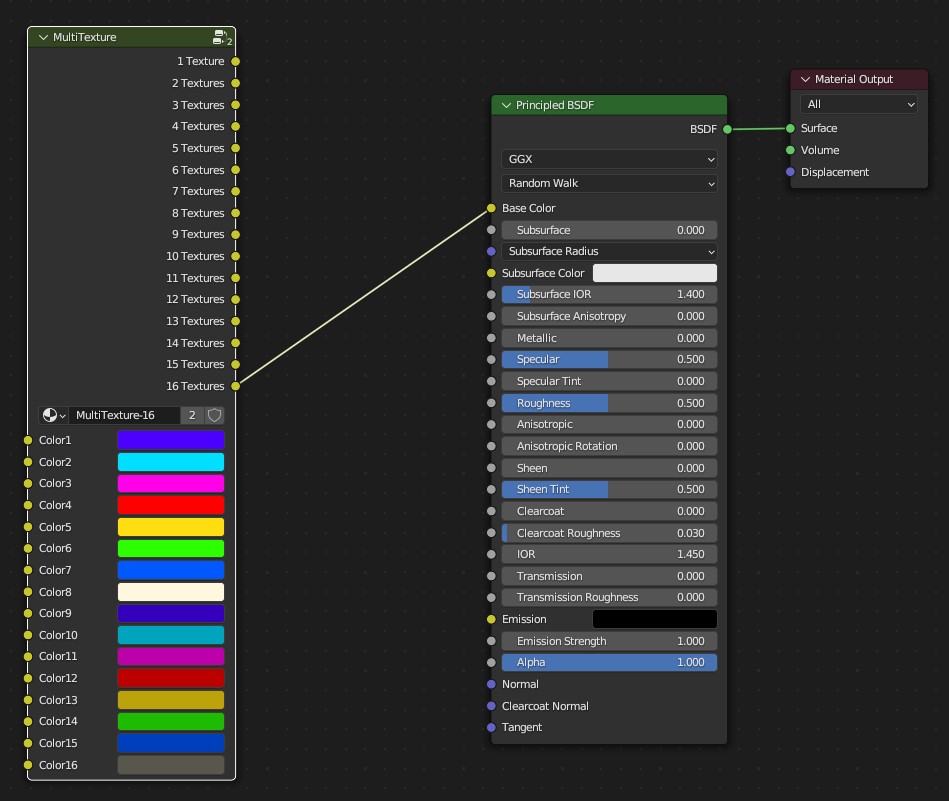
**MultiTexture** is a shader Node which was developed exclusively for [Floor Generator](https://blendermarket.com/products/floor-generator). It allows to distribute randomly up to 16 textures on every board/tile.
The easiest way to create a MultiTexture Material is to use a **Template MultiTexture Material** in the Floor Generator add-on.
If the **Template MultiTexture Material** is selected - there will appear buttons to choose textures for your new MultiTexture material. Once selected - they will be automatically connected to the nodes in the Shader Editor.
As an option it is possible to make all that manually:
## Step 1
Create a new Material and add a MultiTexture Node to it. If you connect one of the output of the MultiTexture Node to Base Color you will already see how inputs of the MultiTexture Node are distributing between boards/tiles.
{% hint style="success" %}
For next steps it is necessary to have [Node Wrangler](https://docs.blender.org/manual/en/latest/addons/node/node_wrangler.html) add-on enabled!
{% endhint %}
## Step 2
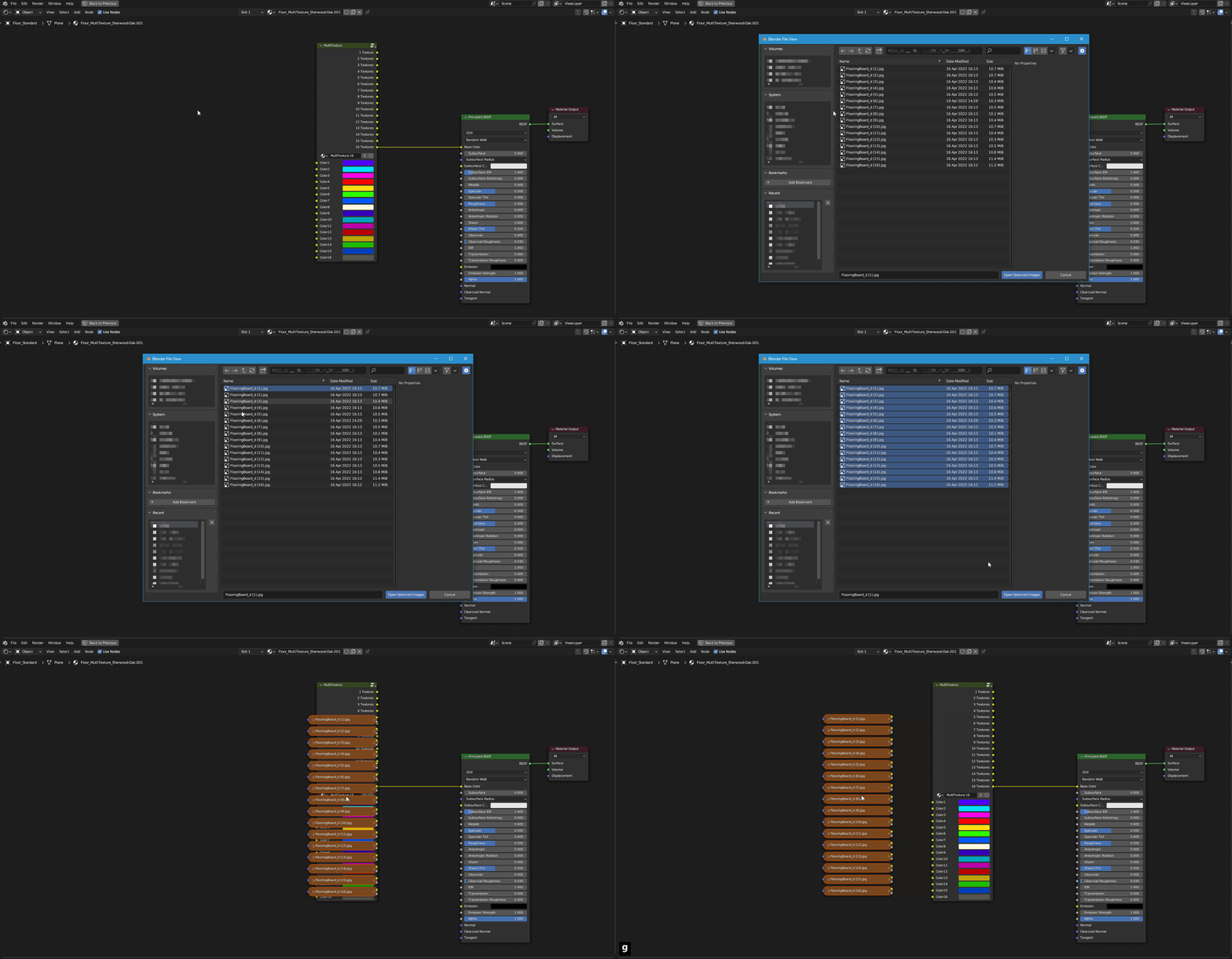
Add your board/tile textures to the Shader Editor (`Shift-A` *-> Texture -> Multiple Images*).
## Step 3
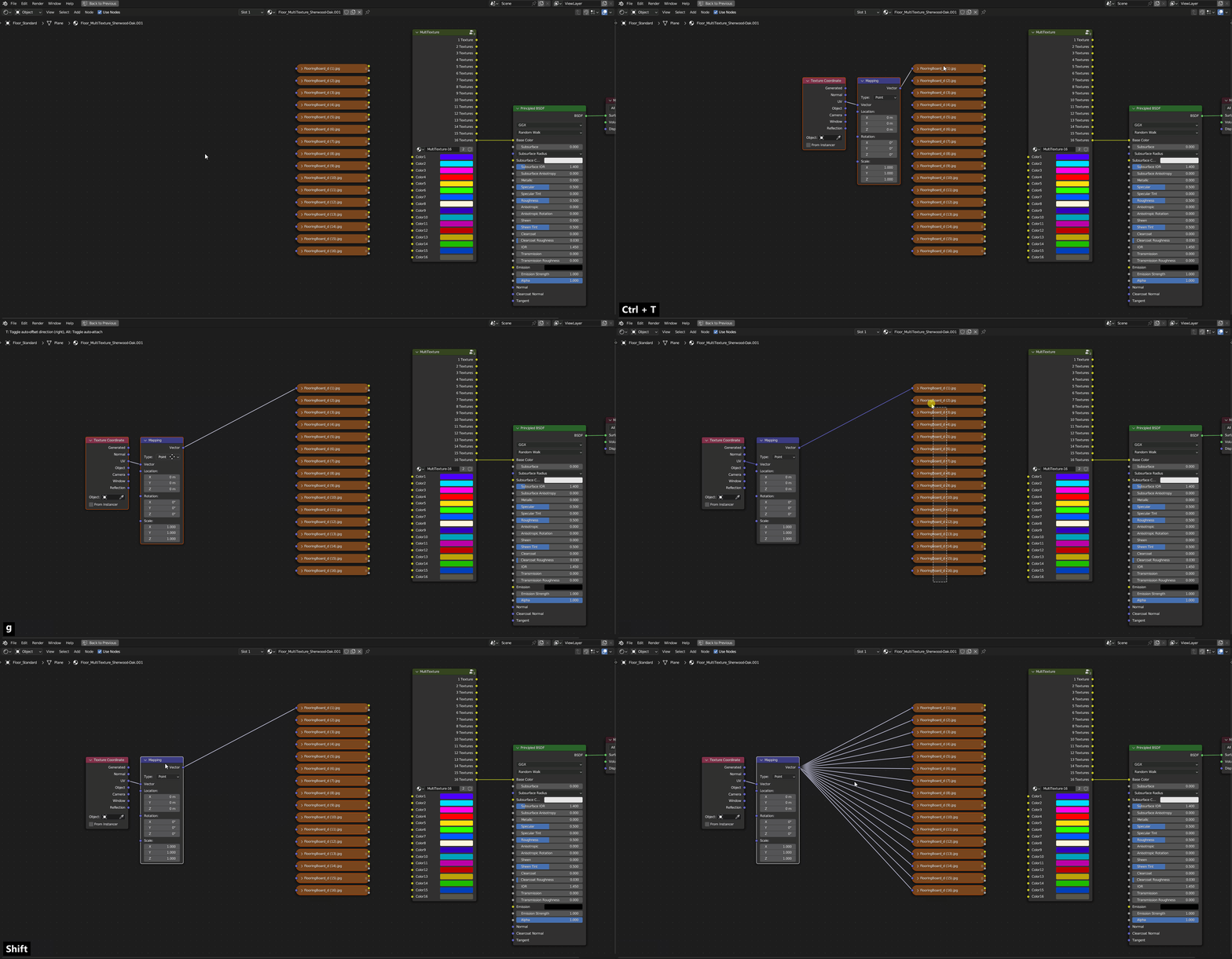
Add **Mapping** Nodes to the textures.
Select one of the texture and press [Ctrl-T](https://docs.blender.org/manual/en/latest/addons/node/node_wrangler.html#add-texture-setup) or just add a [Mapping Node](https://docs.blender.org/manual/en/latest/render/shader_nodes/vector/mapping.html). Select all textures and Mapping Node so that it stays active (last selected) - press [K](https://docs.blender.org/manual/en/latest/addons/node/node_wrangler.html#link-active-to-selected) - that will connect all textures vector inputs to the Mapping Node output.
## Step 4
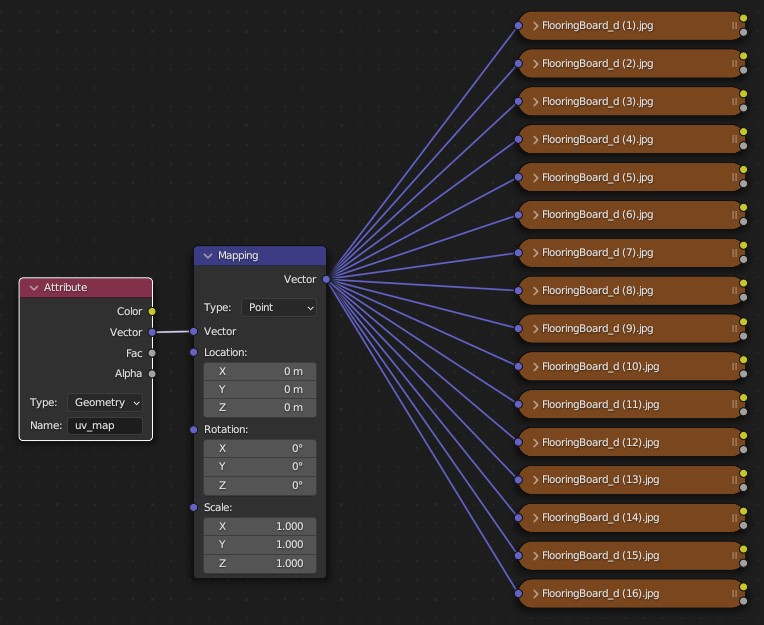
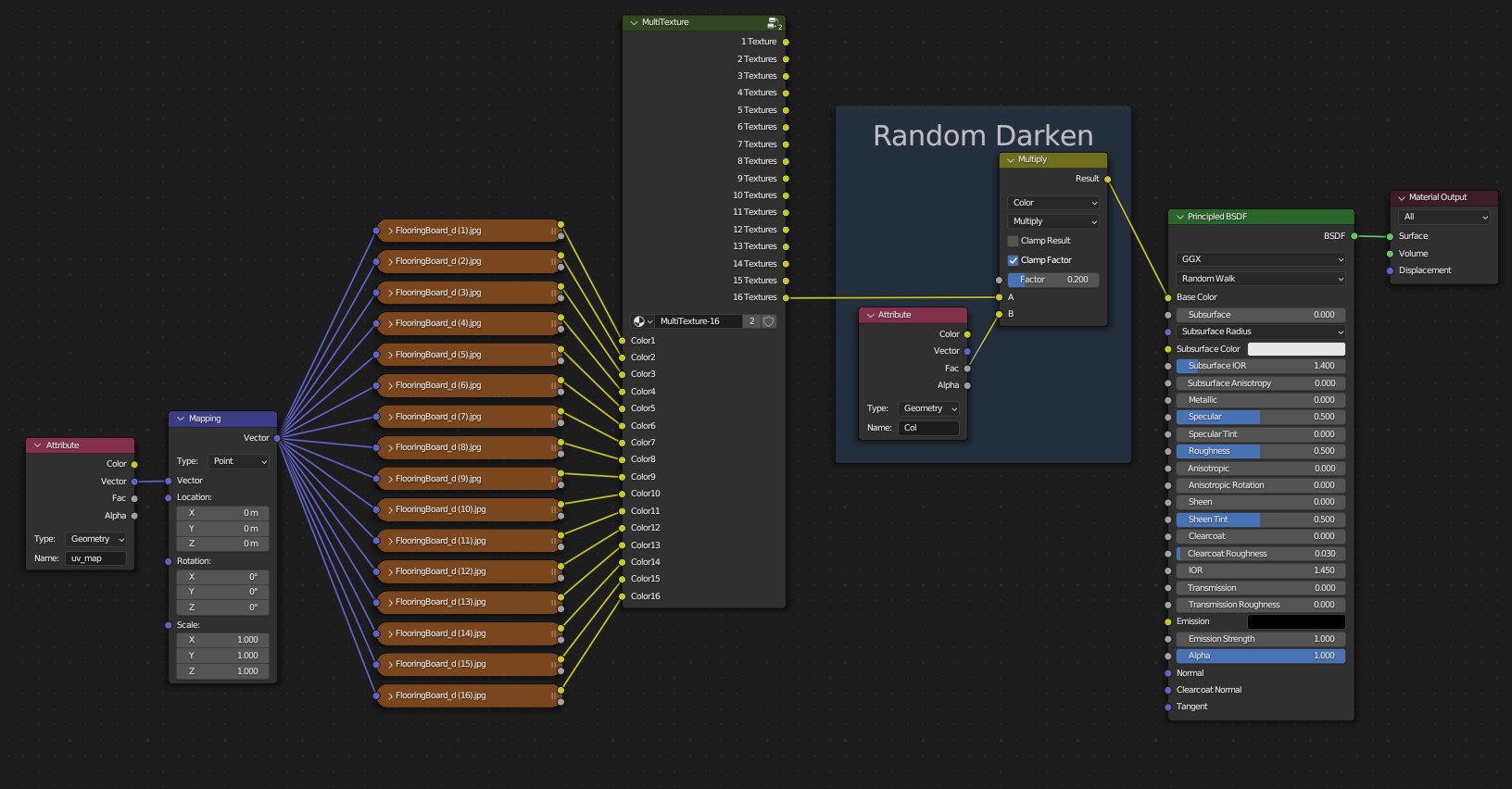
Now it is necessary to link an [Attribute Node](https://docs.blender.org/manual/en/latest/render/shader_nodes/input/attribute.html) to the Mapping Node Vector input. **Attribute Name** should be "*uv\_map*".
## Step 5
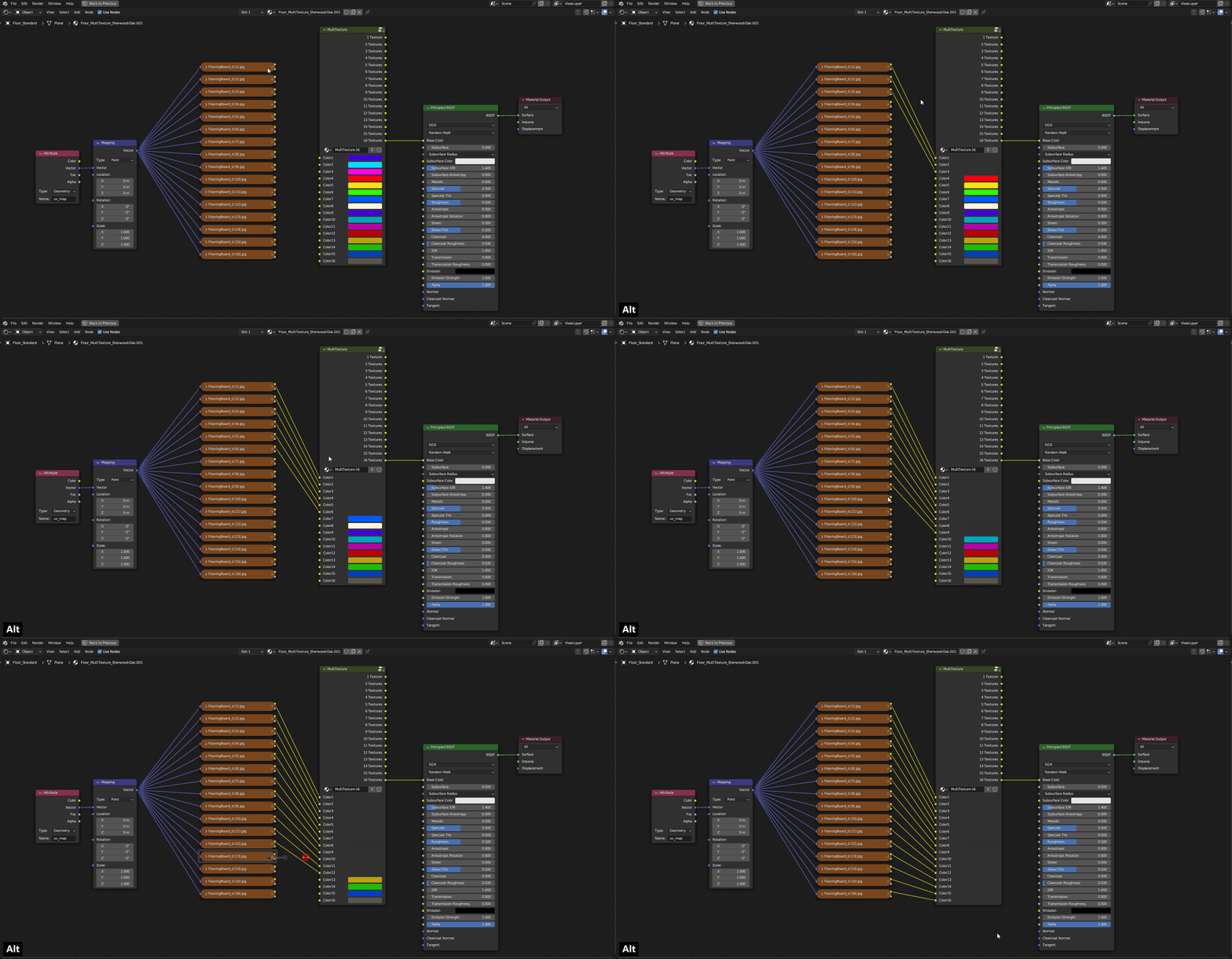
Connect all textures to the inputs of the **MultiTexture** Node. Use [Lazy Connect](https://docs.blender.org/manual/en/latest/addons/node/node_wrangler.html#lazy-connect) (`Alt-RMB`-drag) to speed up the process. It is OK if some inputs of the MultiTexture are empty, just use then the correct output.
## Step 6
It is also possible to randomize boards using "*Col*" Attribute. In this example boards are randomly darkened using Mix Corol Node. You can use "*Col*" Attribute as a Factor Input to Mask boards randomly.
## Step 7
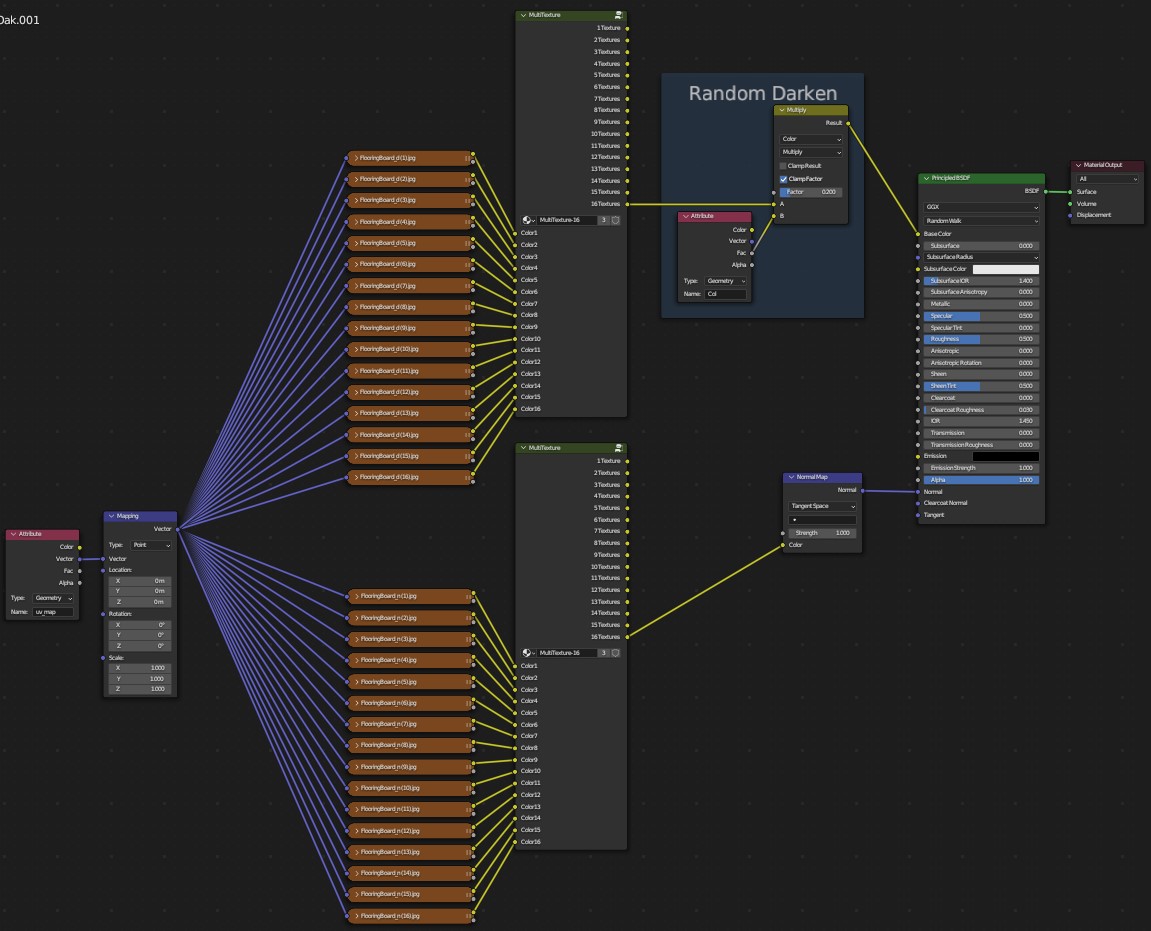
If you also have boards *Normal Maps* you can link them to the duplicated **MultiTexture**. They will match *Base Color* Maps.
Don't forget that Normal Maps should have *Non-Color* Color Space to work correct.
## Step 8
Set [Grout Material](https://nodecrafted.gitbook.io/floor-generator-3.0-manual/sections/materials/grout-material).