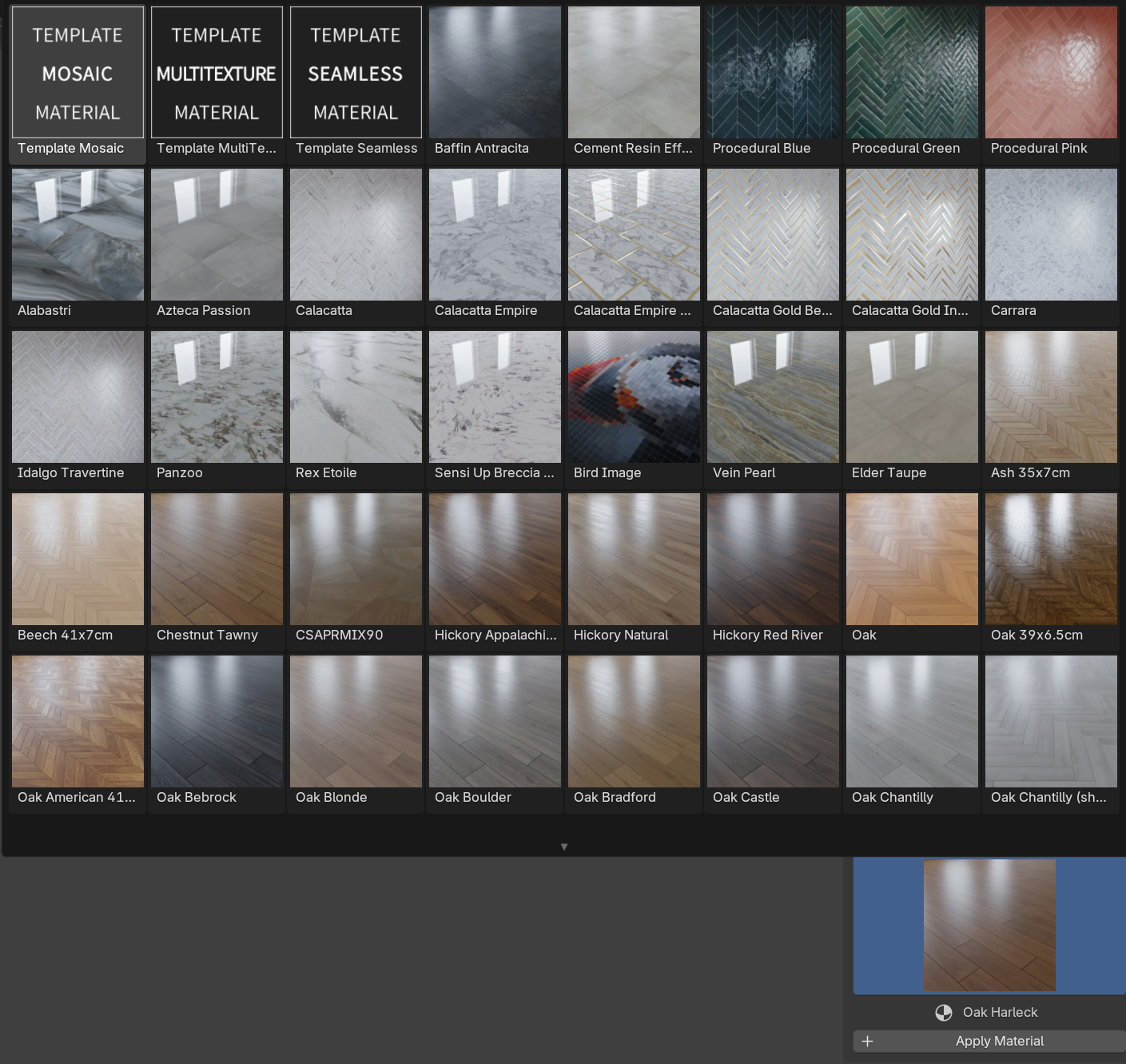
# Material Library
[Floor Generator](https://superhivemarket.com/products/floor-generator) add-on contains a Material Library system that helps to navigate through all the available materials, filter them, apply to the Object, add Textures.
***
When you first install Floor Generator add-on — there are only six Materials available in the library. This is the **Default\_Library**. It includes three **Template** Materials of each mat type and three **Presets** of each type.
***
If you purchased a **Full Version** of the Floor Generator or a separate **Material Pack** — you can install a material pack to add materials to your library.
Go to `Edit > Preferences > Add-ons`, click on the **Folder Icon** in the Install Material Library section, browse for the **Material Pack** you downloaded and click **Install Material Library** button.
To check all the installed Libraries you can click on the **Open Libraries Folder** button.
***
It is also possible to use Material Packs in the Asset Browser. Unzip the pack file and [add it as an Asset Library](https://docs.blender.org/manual/en/latest/editors/preferences/file_paths.html#asset-libraries) to Blender.