# Materials
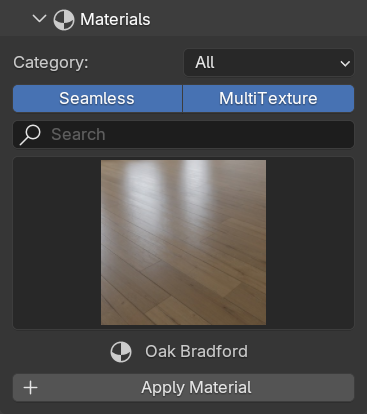
**Materials** section is a very convenient way to add materials to your Floor Generator. It has a searching system that goes through all the installed material libraries and add them to the add-on materials list.
{% content-ref url="materials/material-library" %}
[material-library](https://nodecrafted.gitbook.io/floor-generator-3.0-manual/sections/materials/material-library)
{% endcontent-ref %}
Category — a drop down list of categories that filters library by material type.
Seamless — a button to show/hide materials that use Seamless textures.
MultiTexture — a button to show/hide materials that use MultiTexture method.
Search — an input field to search material by its name.
Material Preview Icon — clicking on the icon opens a 8x5 window to select a material from the library to append to the scene.
Apply Material — a button that appends a selected material to the scene and applies it to the selected Floor Generator Object.
***
In case you need to create your own custom material for the Floor Generator — you can use one of the **Templates** to speed up the process. Choose a **!TEMPLATE** category to find empty material presets faster.
Add Textures — four buttons of this section are only visible for **MultiTexture Template** material and help to append Multiple Images to the scene and connect them to corresponding inputs in the Shader Editor. This is the easiest way to creat custom MultiTexture Material for your Floor Generator.
***
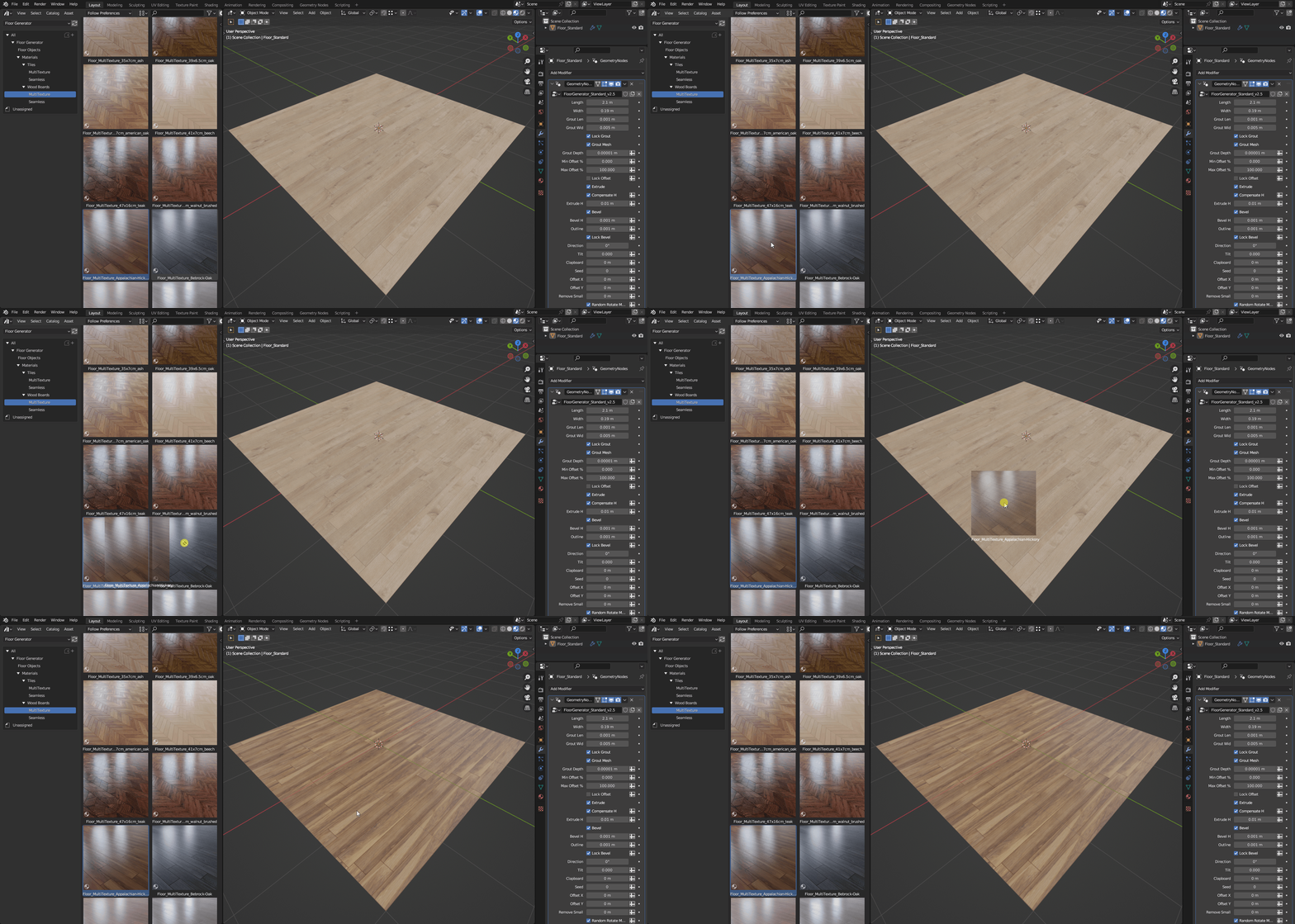
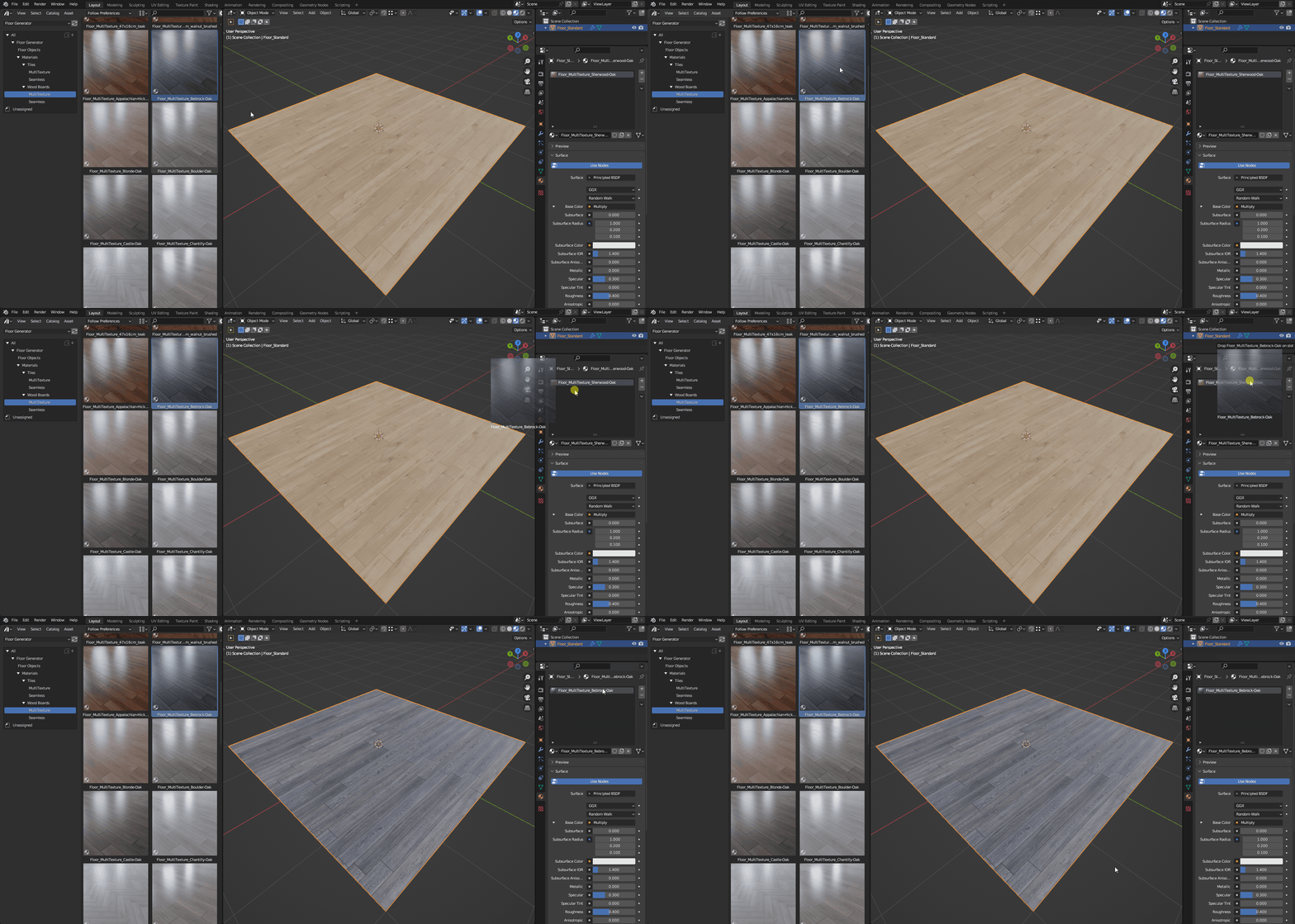
Material Library is also an **Asset Browser** ready library, so you can just unzip Materials Pack file and [add it as an Asset Library](https://docs.blender.org/manual/en/latest/editors/preferences/file_paths.html#asset-libraries) to Blender. So as another option you can add materials to your flooring from the Asset Library.
To apply a Material to your flooring - simply drag-&-drop a Material from the [Asset Library](https://docs.blender.org/manual/en/latest/files/asset_libraries/introduction.html#what-is-an-asset) directly to the Floor Object mesh in the Viewport or to the Material Slot in the [Material Panel](https://docs.blender.org/manual/en/2.79/render/blender_render/materials/material_panel.html).
## FAQ
[How do I create my own MultiTexture Material for Floor Generator?](https://nodecrafted.gitbook.io/floor-generator-3.0-manual/sections/materials/multitexture)
[How do I create my own Material with Seamless texture for Floor Generator?](https://nodecrafted.gitbook.io/floor-generator-3.0-manual/sections/materials/seamless-textures)
[I have my own Material with Seamless texture, but when I apply it - it's just solid color.](https://nodecrafted.gitbook.io/floor-generator-3.0-manual/sections/seamless-textures#step-1)
[How do I change Grout Material of the flooring/tiles?](https://nodecrafted.gitbook.io/floor-generator-3.0-manual/sections/materials/grout-material)